
How to use Language Reactor: subtitles, saved phrases and review
Published
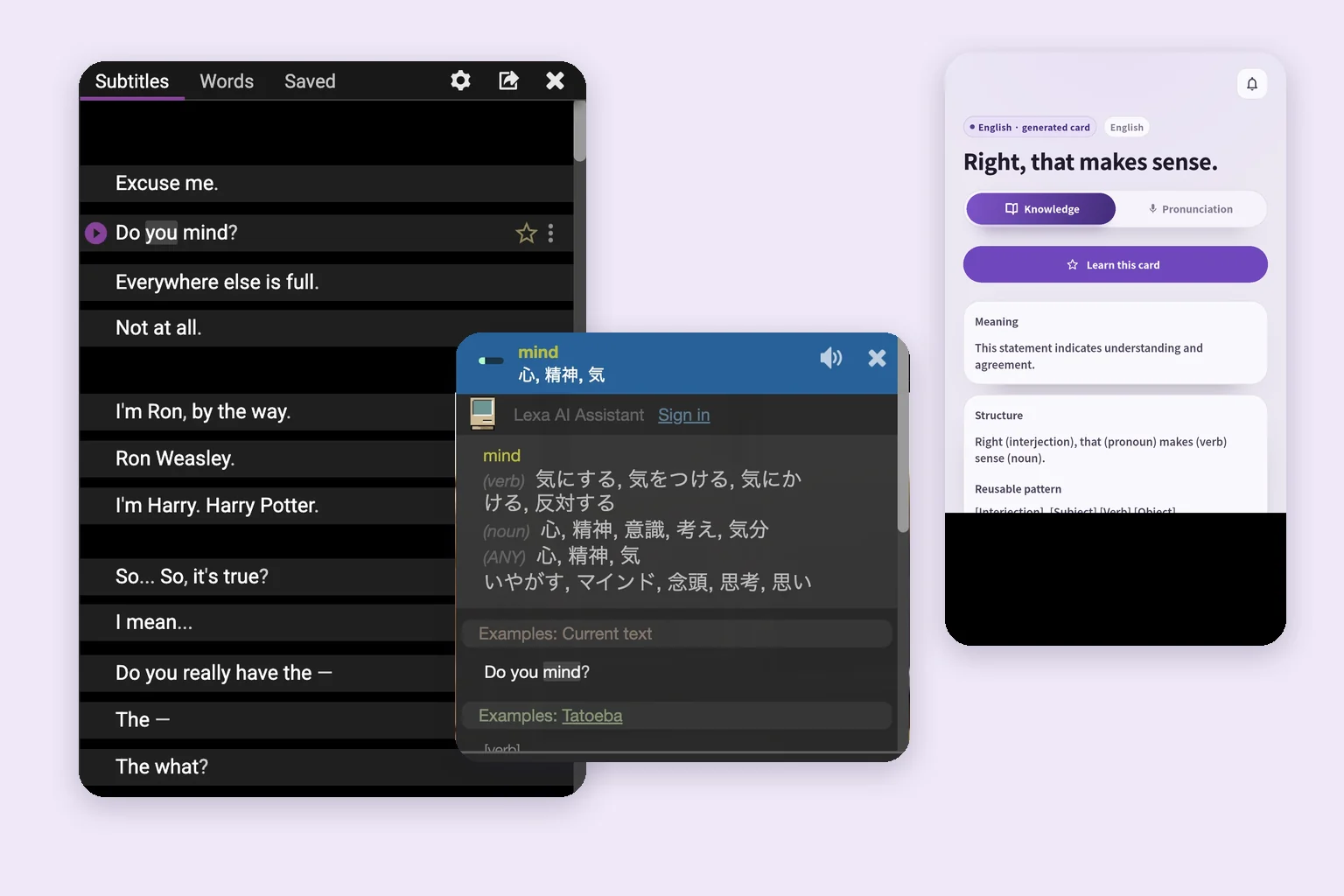
To use Language Reactor, add the official extension to Chrome on your computer, enable LR on YouTube or Netflix, and choose your study language for subtitles and your native language for translations. Click an unfamiliar word for its meaning, then replay the subtitle to hear the sentence again. This guide uses English audio and Japanese translations as the example; choose your own native language when following along.
Start with one sentence you want to understand and say yourself. Saving words and phrases from videos inside Language Reactor is a Pro feature; if you are starting free, you can keep a short sentence in your own notes. The steps below take you from YouTube settings to later review.
Features and plans were checked against the official site, help and Chrome Web Store on September 26, 2026. Language Reactor and SpeakGain are not affiliated.
1. Install the official Chrome extension
The store lists desktop and laptop computers running Windows or macOS with Google Chrome as the extension’s environment. Opening the YouTube phone app will not show the Chrome extension controls described here.
- Open the Language Reactor store listing in desktop Chrome.
- Check the name, Language Reactor, and the provider, Dioco.
- Choose “Add to Chrome,” read the requested permissions, then choose “Add extension.”
- Reload any YouTube tab that was already open.
- Open an English-language video with an English subtitle track.
Already installed? Check that it is enabled in Chrome’s extensions list instead of installing it again. If your work computer blocks extensions, use a computer on which they are permitted.
A short video on a familiar subject makes the first attempt easier: try an official cooking, science or product channel you already enjoy. For choosing a video by interest, comprehension, subtitles and length, see our YouTube English study guide. Here, we focus on operating the video you have chosen.
2. Set up English subtitles and native-language translations
Enable LR in the video player, then open its settings. Select the original subtitle language separately from the translation language. Choosing English everywhere will not give you translations in your native language.
| Setting | This English-learning example | What to check |
|---|---|---|
| Audio | English | The voices you hear are English |
| Original subtitles | English | The text broadly matches the speech |
| Translation language | Japanese, standing in for your native language | A translation helps you check meaning |
| Subtitle visibility | Show both initially | Neither line is hidden |
Check YouTube’s own subtitle menu too. “Auto-generated” means speech recognition produced the track. If a creator-supplied English track is available, start with it and compare it with the audio. A video with only translated subtitles is less useful for checking the original English wording.
In the pictured setup, “YouTube subtitle language” is “English (United Kingdom)” and “Translation language” is “Japanese.” “Show machine translation” is on, “Show human translation” says “Not available,” and “Hide subtitles” is “Disabled.” Substitute your native language for Japanese when setting up your own session.
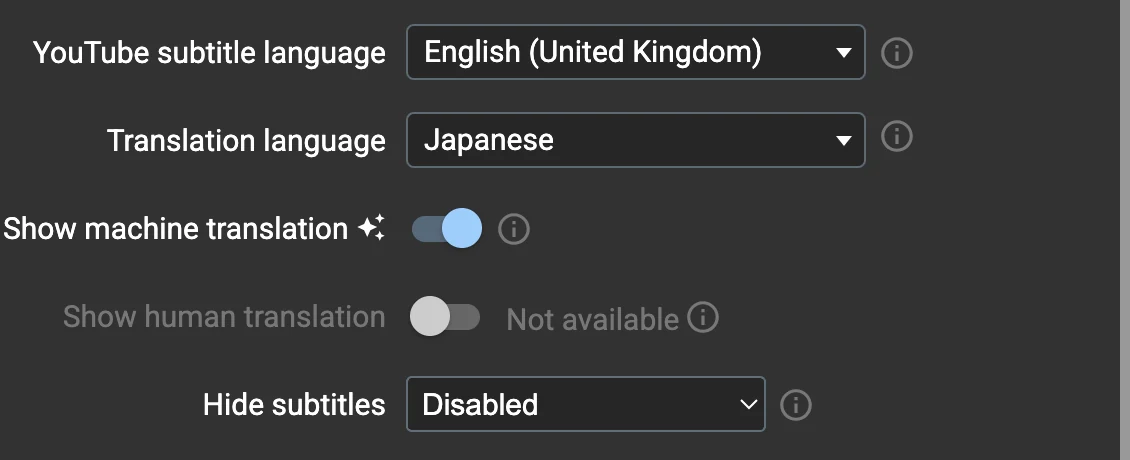
On September 26, 2026, Japanese machine translation worked for this YouTube video in Language Reactor 5.1.8 while signed out in free mode. That observation applies to this video and setup; it does not mean machine translation is always free. Check the official Pro page for current conditions.
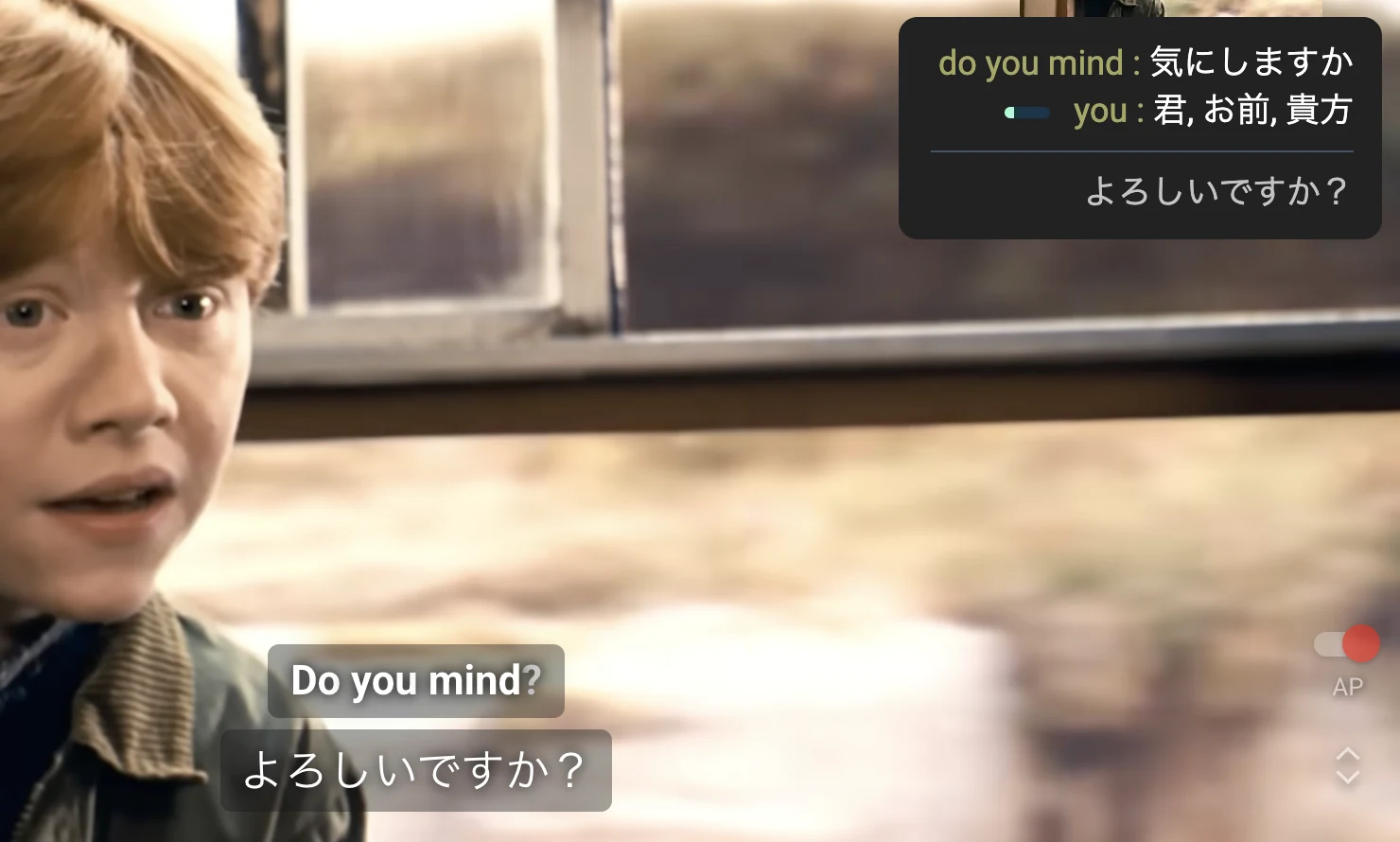
Play one sentence and compare the two lines. Here, Do you mind? asks whether Ron may sit down. First establish that the original and translated lines refer to the same utterance; you need not read every word at once.
If the translation is missing, check hidden-subtitle settings, the translation language and available tracks. On Netflix, subtitle languages depend on the title and country. Check Netflix’s own selector; the official FAQ suggests trying another title or Pro machine translation when a language is unavailable. Settings alone cannot supply identical tracks for every title.
3. Find a sentence in the subtitle list and replay it
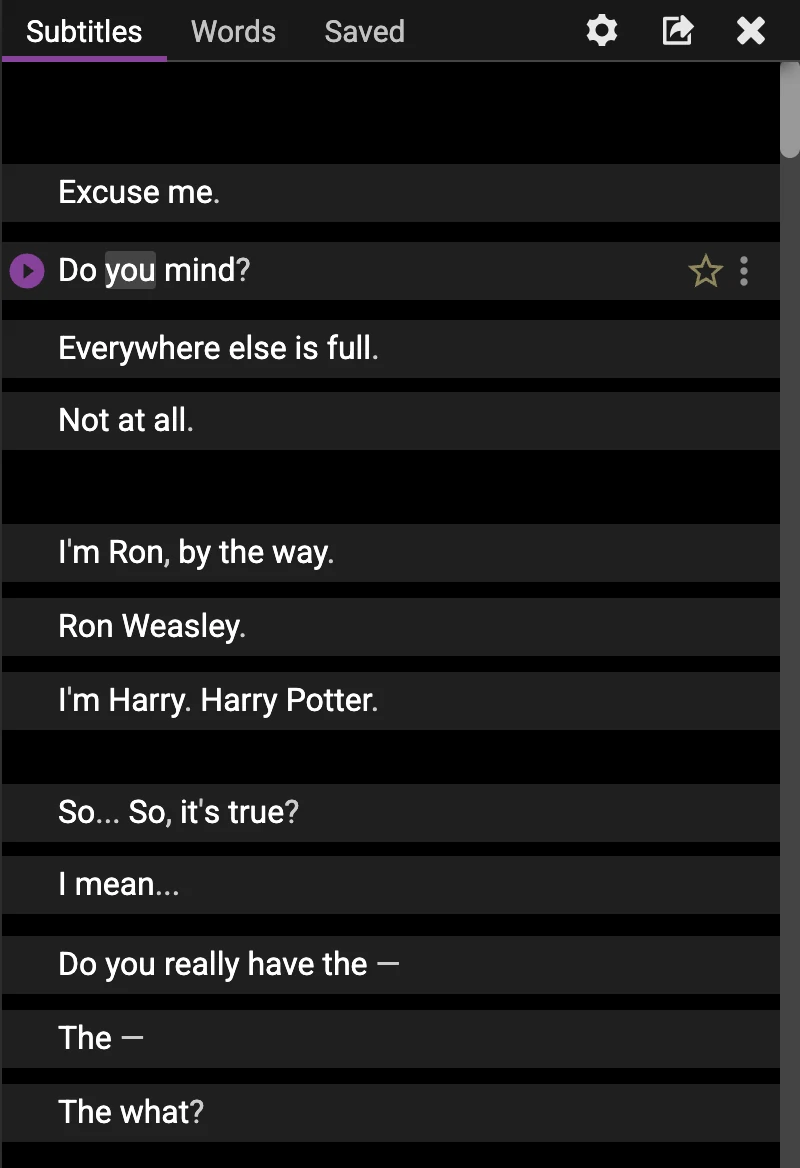
The subtitle list lets you read the line before an utterance and the response after it. Find the line and use its playback control rather than repeatedly guessing a position on the progress bar.
Our example is The Hogwarts Express compilation from the official Harry Potter channel. Listen for Ron’s Do you mind? at about 0:48. He is asking to sit in the train compartment. To use LR controls, open the video link in desktop Chrome.
- Play to about 0:48 and pause on
Do you mind?. - In “Subtitles,” read the current line and those around it.
- Choose the play icon to the left of that line and listen while reading the English.
- Look away from the subtitles and listen to the same question again.
The official guide lists these shortcuts. Move focus away from search or comment fields first.
| Key | Action | When to use it |
|---|---|---|
A |
Previous subtitle | Recover the preceding question |
S |
Replay subtitle | Hear the same sentence again |
D |
Next subtitle | Hear what comes next |
Q |
Toggle auto-pause | Stop after a subtitle to speak |
Auto-pause stops at the end of each subtitle. If speaking along with the audio is difficult, wait for the pause and repeat the sentence. Turn it off when you want to follow the scene continuously. More shortcuts are available in settings, but these four are enough to start.
After Ron’s question, he explains that the other seats are full and Harry says he does not mind. Use D to check that context, return to the question and use S to hear it again. Choose the operation according to whether you need the meaning or the sound.
4. Click a word and choose its meaning in context
Click mind in Do you mind? to open the dictionary. The screenshot lists Japanese definitions for both the verb and noun. Here it is a verb meaning to object or be bothered, not the noun referring to someone’s mind. Do not simply copy the first meaning you see.
- Click
mindin the subtitle. - Distinguish the verb entry from the noun entry.
- Return to
Do you mind?under “Examples: Current text” and ask what Ron is checking. - Replay the sentence and listen to how the word joins the surrounding sounds.
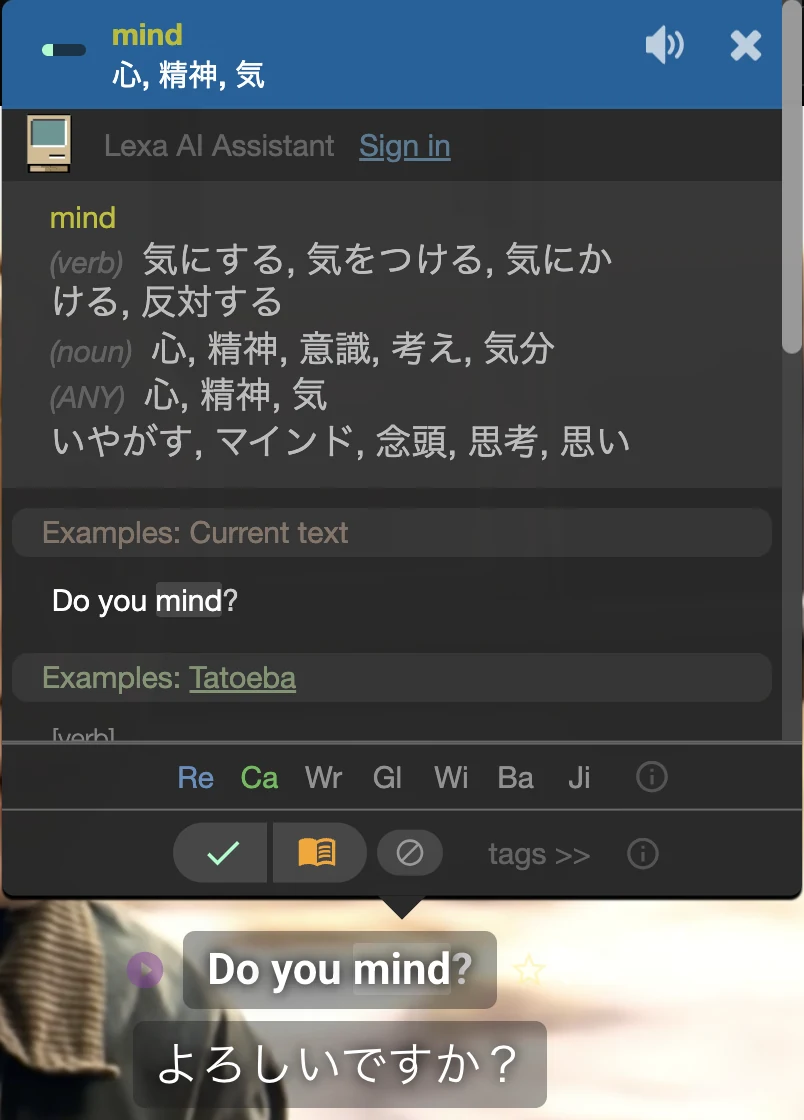
Ron wants to know whether Harry objects to him sitting there. In this scene, the practical meaning is “May I sit here?” The official help explains the word-click operation; the context tells you which meaning fits.
If a definition does not make sense, consider another meaning or a phrase formed with neighbouring words. An automatically generated subtitle may also be wrong, so return to the audio and surrounding conversation. Translations do not necessarily map word for word. Use them to understand the scene, then return to English to check the expression you want to keep.
5. Save words and phrases: Pro or your own notes
Saving from videos inside Language Reactor uses Pro. The official guide describes right-clicking a word and pressing R to save the current subtitle. Right-click behaviour can be customised, so check your settings if the response or colours differ from an older guide. See basic controls and saving words.
Decide whether you want a word’s meaning or a question you can say. For Do you mind?, keeping the sentence and situation is more useful for speaking practice than saving mind alone. If a subtitle cuts off mid-sentence, read adjacent lines to establish the complete thought.
Save inside Language Reactor with Pro
- Sign in and check that Pro is active.
- Pause and select the word or subtitle you want.
- Use the documented save action: right-click for a word or
Rfor the current subtitle. - Open “Saved” on the official site and check that the intended item appears.
Confirm the result in the list, not just by pressing a button. Check the study language if you cannot find it. Keep the video title, URL and timestamp in your own notes if you want an easy route back to the scene.
Start free with a sentence in your own notes
If saving from a video asks for Pro, write a short sentence in your own notes. The official guide also lists Ctrl/⌘ + C for copying the current sentence; if that does not work, type the sentence while checking the subtitle.
- Sentence:
Do you mind? - Meaning here: May I sit here?
- Your situation: Indicating a seat and checking with the other person.
- Source: Official Harry Potter video, 0:48, spoken by Ron.
Without a visible situation, Do you mind? can be unclear. To name the action, use Do you mind if I sit here? Make one note, then try recalling the question the next day from the situation alone.
What is free, and what needs Pro?
Choose according to the job: checking subtitles and meanings, or saving discoveries inside the service. These distinctions were checked on September 26, 2026.
| What you want to do | Official distinction | Starting point |
|---|---|---|
| Use subtitles, dictionary and playback tools | Basic features; available subtitles are needed | Try one video free |
| Use Netflix-provided subtitles | Free | Check the title’s language menu |
| Use Netflix speech recognition and machine translation | Pro | Consider it for a specific subtitle problem |
| Save words and phrases within PhrasePump | Available free | Use it during PhrasePump practice |
| Save across all LR features, including videos | Pro | Consider it if saving while watching is useful |
The distinction matters: the Pro page includes PhrasePump saving in Free and saving across all features in Pro. Neither “nothing can be saved free” nor “words from YouTube can be saved free” describes that boundary accurately.
Check the currency, billing period, total charge and renewal conditions on the official page before subscribing. If looking up a sentence and keeping your own note meets your needs, begin with those basic operations.
6. Turn a sentence into speaking practice and review
After checking a sentence in LR, pause and say it. First read the English, then look away and recall it from its meaning or situation. Sentences you understand but cannot yet say are useful candidates for later practice.
For the SpeakGain example, we now use a separate everyday sentence, That makes sense., not a line attributed to this clip. Imagine a colleague explaining why a certain order avoids doing the work twice. Reply with this sentence to acknowledge the explanation.
With paper or digital notes, hide the English and try speaking before revealing it. If you want audio and explanations on a card, enter the sentence yourself in SpeakGain.
- For example, add
Right, that makes sense.as a card, a natural variation of the sentence you just practised. - Read its meaning and structure explanation to check your intended message.
- Listen to the selected character’s voice and say the sentence yourself.
- During review, recall it from the meaning or situation before viewing the English.
- Check the answer and audio, then rate how you did.
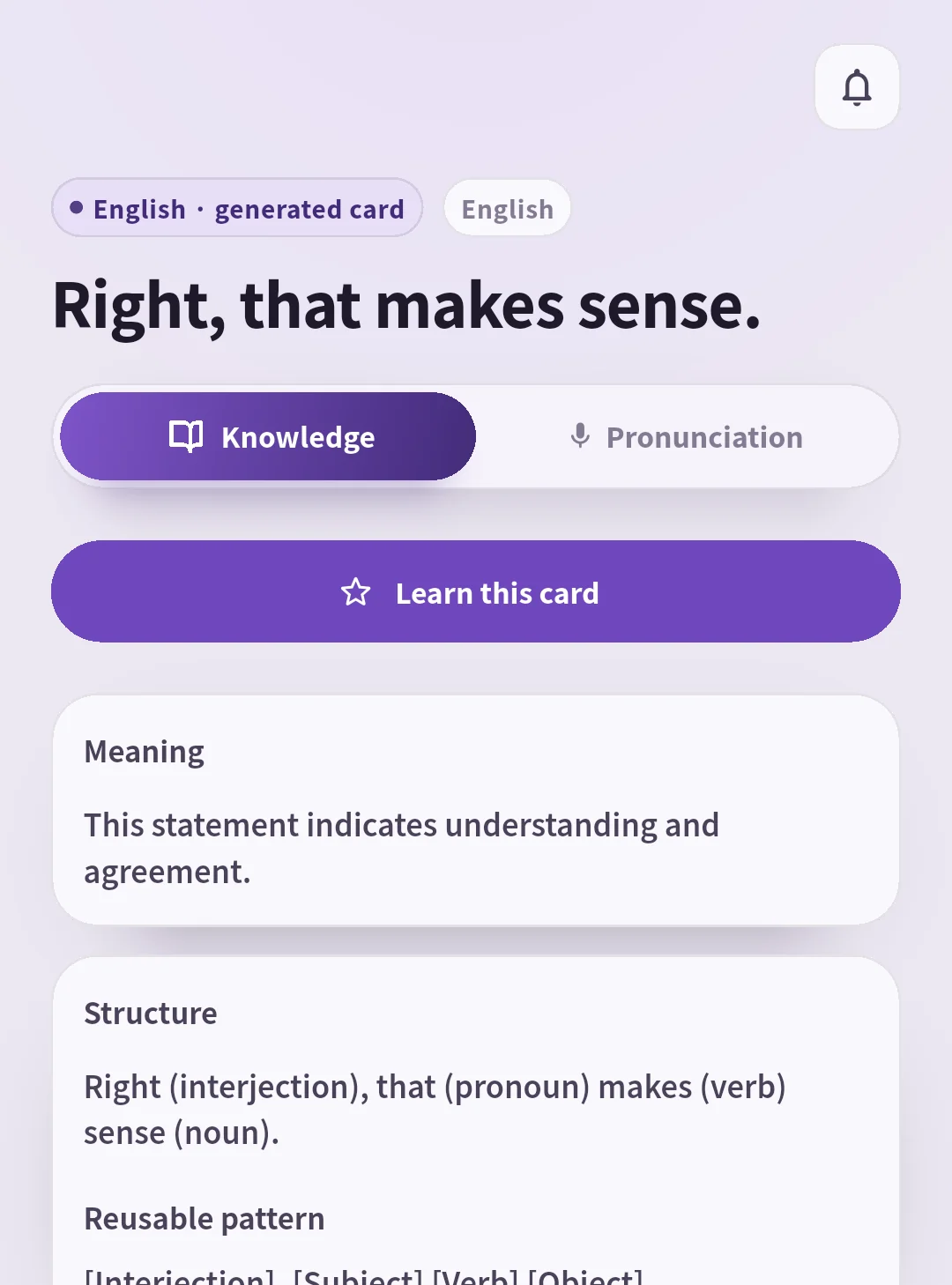
SpeakGain generates audio in the selected character’s voice. Return to YouTube to hear the original speaker and conversation; use the card to practise the sentence on its own. See what SpeakGain does.
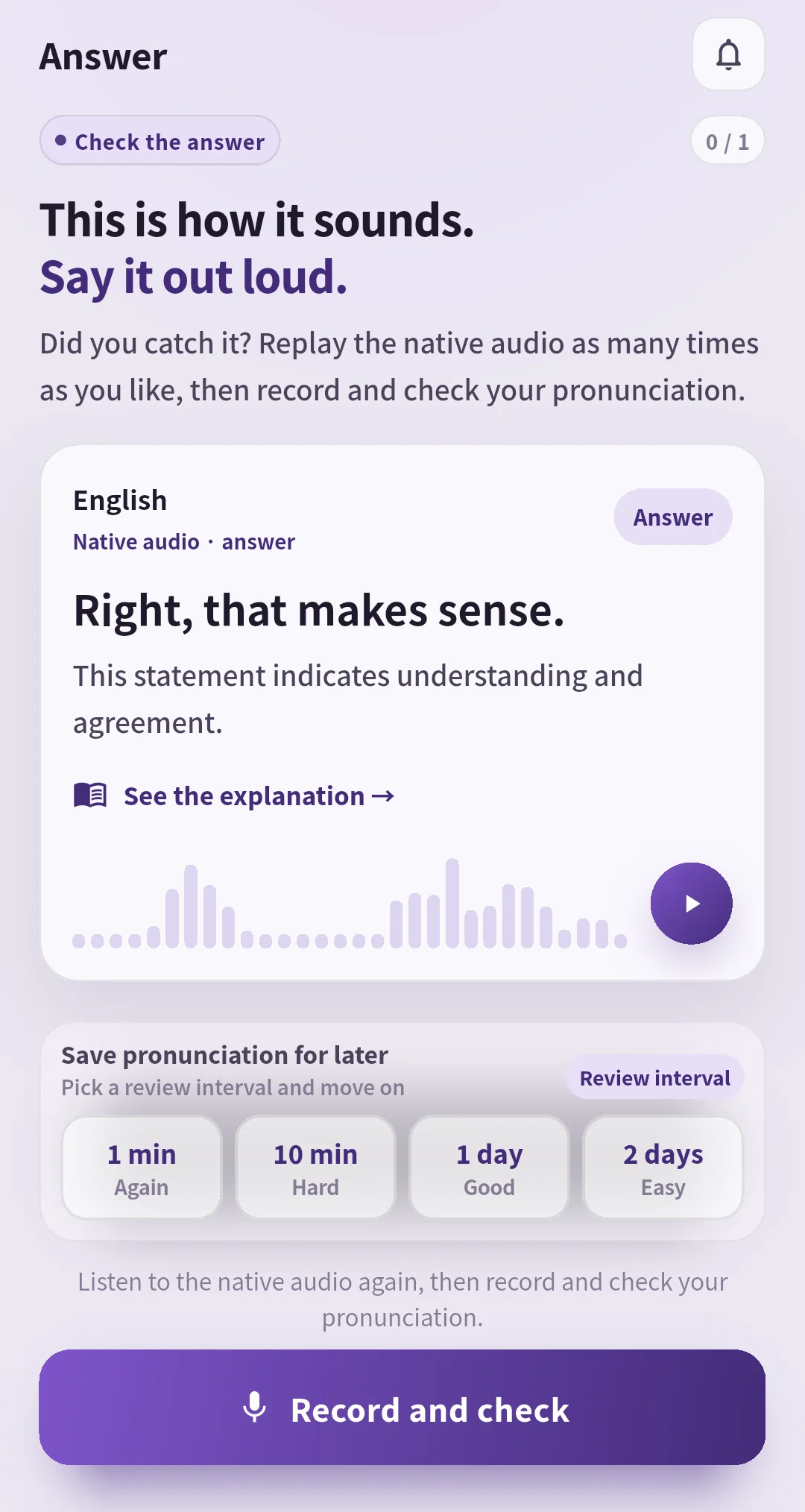
Review intervals depend on your practice history and ratings. Try saying the sentence before deciding that recognising the answer means you know it. If you could not recall it, listen and try again. Recording and pronunciation feedback are optional; listening and speaking are enough to begin.
Troubleshooting: what to check first
The LR button is missing
Open the video in desktop Chrome, check that the extension is enabled and that it has access to the relevant site, then reload the tab. The FAQ also covers the correct extension, permissions and network blocking. If only YouTube is affected, check its site access; if both sites are affected, begin with the extension’s enabled state. Ask your administrator about managed-network restrictions.
English appears but the translation does not
Check the translation language and hidden-subtitle settings. On Netflix, check the original language menu and try another title. On YouTube, another video with English subtitles helps distinguish a video-specific issue from a common setting.
Shortcuts do not respond
Move focus out of the search or comment box. Try the on-screen playback control, then S. If you customised keys, compare them with the shortcut list in LR settings.
The words on screen do not match the audio
Check whether the track is auto-generated and try another English track if available. Dubbed Netflix dialogue can differ from subtitles. An originally English-language video helps you separate a material problem from an operation problem.
Can I do this on a phone?
The official site also describes web use on phones and tablets, but that is distinct from the desktop Chrome extension. Use desktop Chrome to reproduce these YouTube controls. On a phone, you can start with YouTube’s own subtitles and review one sentence in a note or card.
Try this with one video today
Open a short video with English subtitles, display a native-language translation, find one sentence in the list, check a word and replay the utterance. Keep one sentence you want to say, then try it without looking.
Before your next video, read only the situation on your note and respond. If you remember it, continue watching; if not, return to that sentence’s audio. Completing this loop for one sentence is a useful first session.
Sources
Checked September 26, 2026. Use the page that matches the setting you want to verify.
- Chrome Web Store: provider, desktop requirements and installation.
- Official site: subtitles, dictionary, playback and web features.
- Get Started: shortcuts, copying and saving.
- Pro Mode: Free/Pro distinctions and subscription conditions.
- Saving Words: colours and right-click settings.
- FAQ: missing subtitles and extension controls.
After checking subtitles, try turning an anime scene’s idea into your own spoken sentence, without copying dialogue.