
Learn English with Steam Games: Language Settings, Screenshots, and Review
Published
To learn English with a Steam game, check its English row on the store page, set that individual game’s language, test the audio and subtitles inside the game, then save a useful line with Steam’s screenshot key. After playing, choose one to three short sentences to say aloud and revisit before your next session. You can leave the Steam client’s own display language as it is.
Choosing something to play on Switch? Compare English support, voice acting and reading pace in our five Switch games for adult English learners.
Read the store language table before changing settings
Open the game’s Steam store page and find the Languages table. Read across the English row: Interface means on-screen UI text, Full Audio means recorded English voices, and Subtitles means written dialogue. A page written in English does not by itself tell you whether the game has English voices.
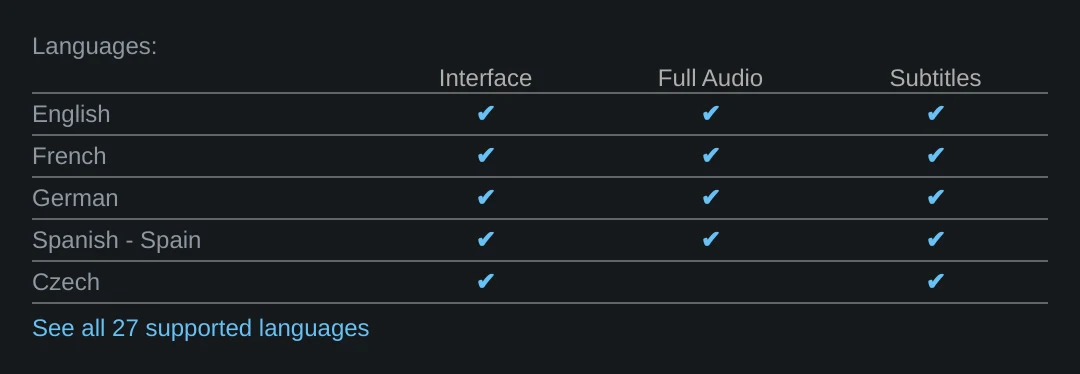
Portal 2 is a worked example, not a promise about another title. If a game’s English row checks only Interface and Subtitles, plan to read English rather than expect spoken English. The table also does not promise that you can mix English audio with subtitles in another language. Check that combination in the game’s own settings after launching it.
| Store column | What to test after launch |
|---|---|
| Interface | Are menus and prompts in English? |
| Full Audio | Does a short conversation play in English? |
| Subtitles | Can you turn English dialogue text on? |
Change one game, then check its own menu
In the Steam client open Library, right-click the target game, and open Properties → General → Language. If English is offered, select it. Let any language download finish before launching. This changes the selected game’s language; there is no need to change the whole Steam client just to test one title. Steam’s language help and language documentation distinguish game language support from client display language.
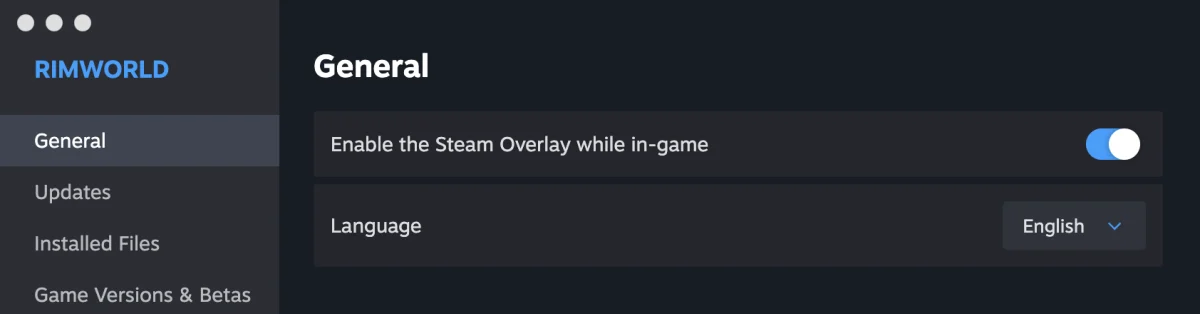
If that control is absent, inspect the game’s own Options or Settings screen instead of guessing where Steam moved it. Some titles manage language inside the game. Once the game starts, play one short exchange and check the voice language and subtitle language separately. Start with English audio plus English subtitles if you can follow the scene; if the game offers separate choices, try English audio plus your familiar subtitle language when the story becomes hard to follow.
Save a line and locate the screenshot
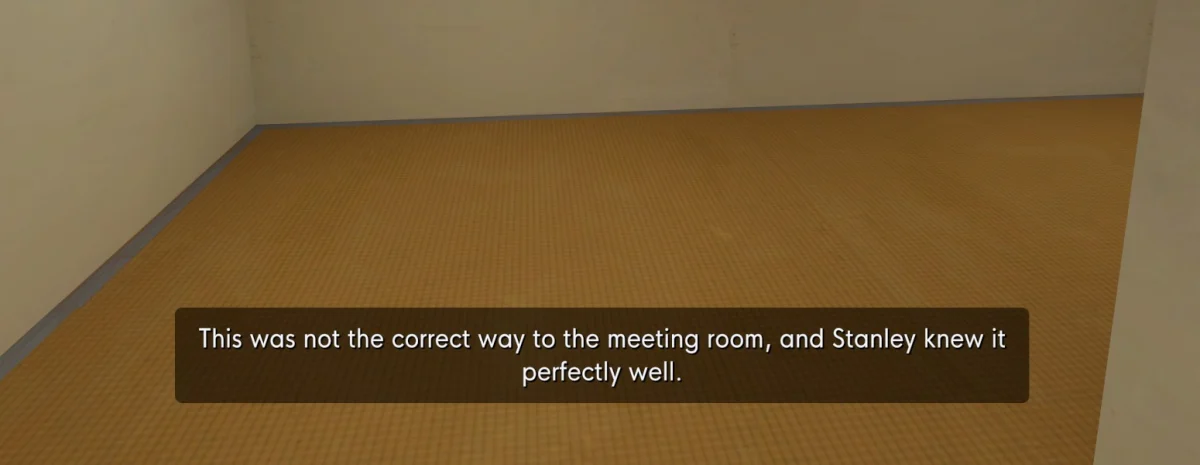
Steam’s screenshot documentation gives F12 as the default capture key and says the Steam Overlay must be active. The key can be changed in Steam Settings → In-Game. Make one test capture with both the subtitle and its setting; the corridor in the real example below helps you recall what the narrator described.
On a Mac keyboard, press fn+F12 unless standard function keys are enabled. Apple Support explains how the Fn key changes the top row.
After playing, open View → Screenshots in Steam, or the Screenshots section of that game’s Library page, and select the image. If you need its folder, use the current client’s control for opening the local file location. Do not rely on a folder path copied from another PC. If F12 made no image, check that you launched through Steam, the Overlay is enabled, and the shortcut has not been changed; otherwise write the line and scene down by hand.
Turn one capture into a short review
The screenshot from The Stanley Parable: Ultra Deluxe contains one complete subtitle. Stanley has taken a corridor away from the meeting room, and the narrator says:
This was not the correct way to the meeting room, and Stanley knew it perfectly well.
Choose that one sentence rather than making separate cards for “correct” and “perfectly.” In your note, record the full line, “Stanley knows he took the wrong route,” the game title, and the capture date. Read it aloud once; for your own example, change the destination to a station. Before the next session, hide the text, recall the wrong turn, and try to say the sentence. One to three sentences per session is a practical workload limit.
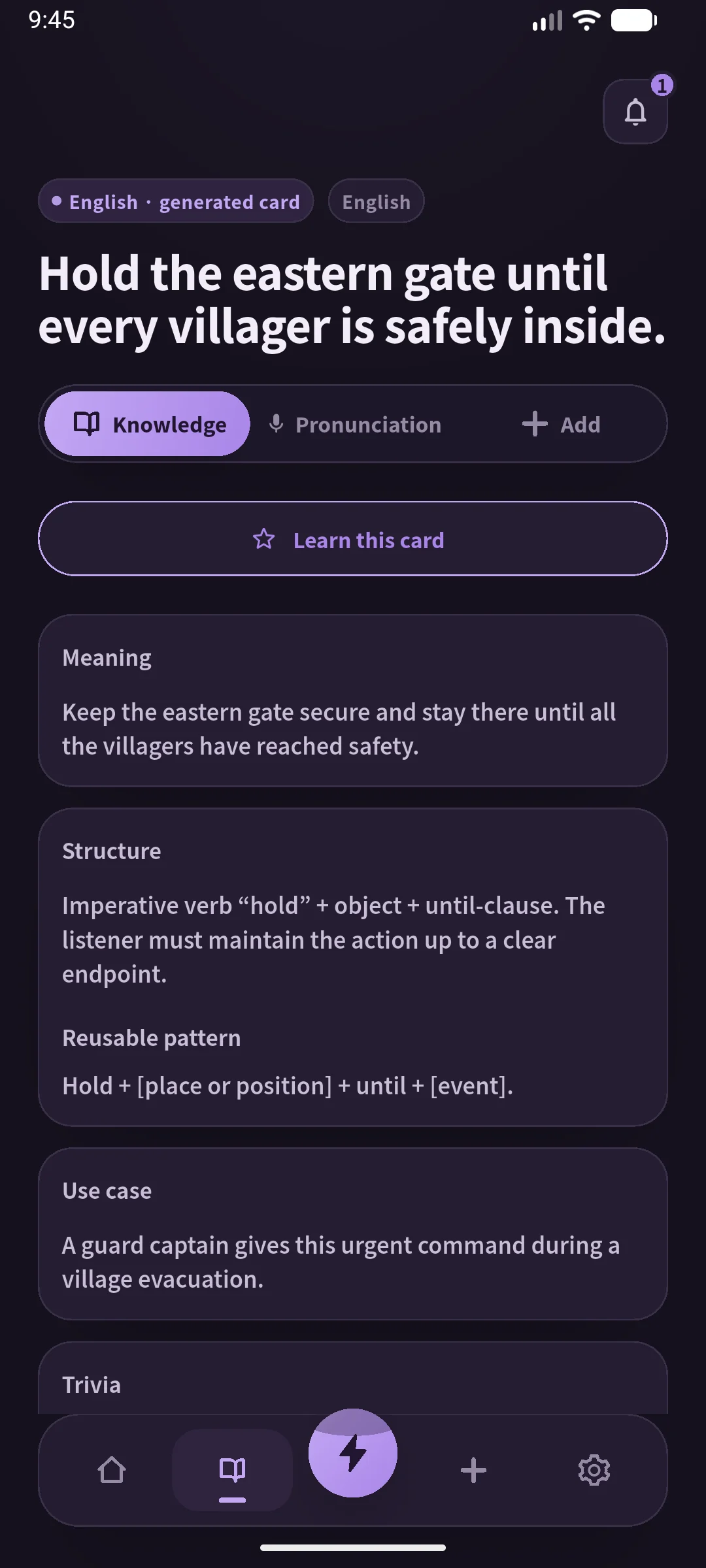
If you use SpeakGain, which we make, type the chosen sentence yourself, listen to its generated audio, say it aloud, and revisit the card later. It cannot OCR or automatically import a Steam screenshot. For broader advice on choosing a game and deciding which words to look up, see our general guide to learning English with games. For six picks by learning goal, see our Steam game guide.
Fix common snags
| Symptom | Try this |
|---|---|
| English text but another voice language | Check Full Audio in the English store row, then the game’s audio setting |
| No Language control in Properties | Check the game’s own options and its official support |
| F12 saves nothing | Check launch through Steam, Overlay, and the shortcut in Settings → In-Game |
| Too many captures to revisit | Open one image, keep one useful line, and say it before your next session |
Frequently asked questions
Must I switch all of Steam to English?
No. Start with the selected game’s Properties → General → Language control. Check its in-game options if that control is missing.
Does “English supported” mean English voices?
Read the Full Audio column in the English row. Interface or Subtitles alone do not establish voice support.
Where are F12 captures?
Open Steam’s View → Screenshots and select the game. Use the local file option there when you need the exact folder on your computer.
Can SpeakGain import a screenshot?
No. Read the line in the image and enter only the sentence you choose yourself.
Sources
- Valve, Steam and Games - Language Settings.
- Valve, Languages Supported on Steam.
- Valve, Steam Screenshots.
- Valve, Portal 2 store language table.